RSS isn't dead. In fact, in a world of algorithmic feeds, paywalled newsletters, and social media noise, RSS has quietly become the best way to follow the topics you actually care about. The problem is that most RSS readers are either too complex, too ugly, or too neglected.
That's why I built Broadsheet Reader.
What Is Broadsheet Reader?
Broadsheet Reader is a native macOS app for reading RSS and Atom feeds. It's built entirely with SwiftUI and SwiftData, uses no third-party dependencies, and syncs your feeds across devices with iCloud. It's fast, lightweight, and designed to get out of your way so you can focus on reading.
The name comes from the broadsheet newspaper format, and that editorial sensibility runs through the whole app. Article titles are set in a serif typeface. Dates are formatted like newspaper datelines. The interface is clean and minimal, with a single green accent color that ties everything together.
Getting Started Is Easy
When you first launch Broadsheet Reader, a short walkthrough introduces the key features. After that, you're offered a curated set of starter feeds covering AI, tech news, and research. Select the ones that interest you and you're reading within seconds.
Already have feeds in another reader? Import them. Broadsheet Reader supports OPML import and export, so migrating from Feedly, NetNewsWire, Reeder, or any other reader is a one-step process. Your groups and folder structure come along for the ride.
Of course, you can also add feeds one at a time. Just paste a website URL and Broadsheet Reader will automatically discover the RSS or Atom feed. You don't need to hunt for the feed URL yourself.
A Layout Built for Reading
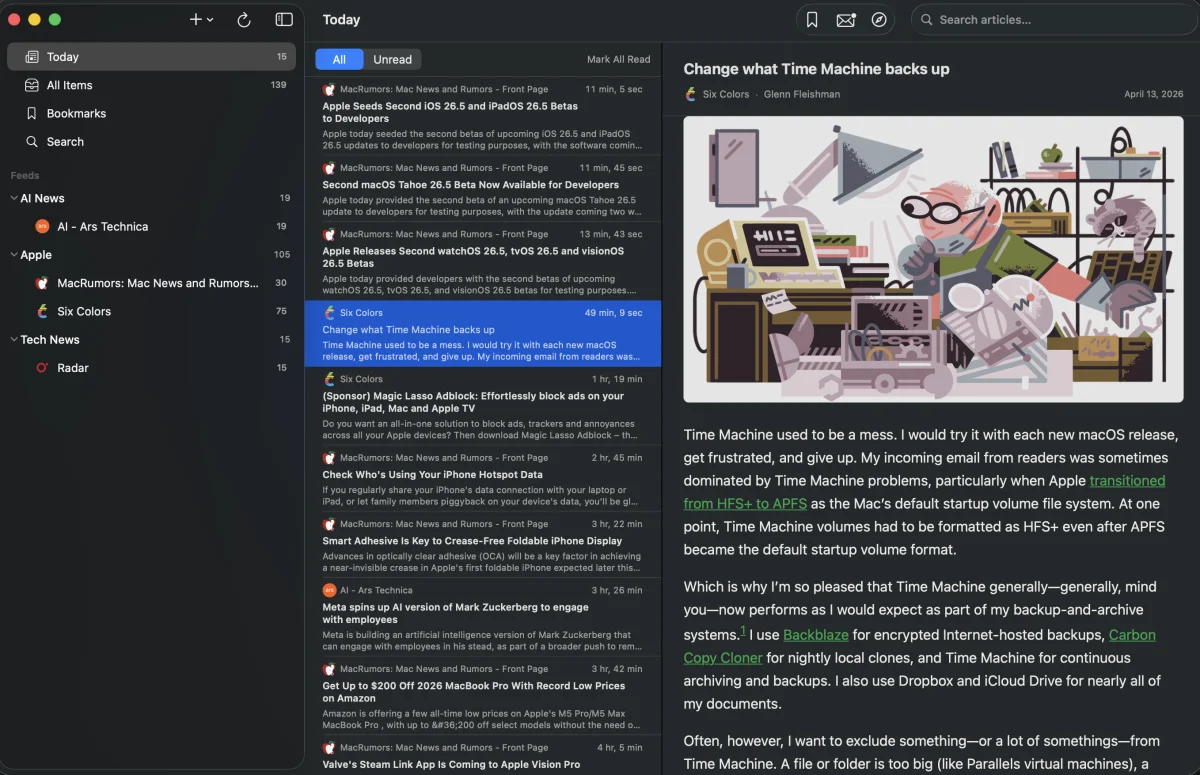
Broadsheet Reader uses a three-column layout that should feel familiar to anyone who's used a Mac mail client or RSS reader before. The sidebar on the left shows your navigation sections and feed groups. The center column lists your articles. And the right column shows the full article content.
The sidebar gives you quick access to the views you'll use most: Today (articles published in the last 24 hours), All Items, Bookmarks, and Search. Below that, your feeds are organized into collapsible groups with unread count badges so you can see at a glance where new content has arrived.
In the article list, unread articles are marked with a small green dot and a bold serif title. Once you've read them, the dot disappears and the title weight softens. It's a subtle but effective visual cue that makes scanning your feed list effortless.
Stay Organized
Feeds can be grouped into named sections that you can collapse, expand, and reorder with drag and drop. Right-click any feed to move it between groups, refresh it individually, or mark all its articles as read.
The filter bar at the top of the article list lets you toggle between All and Unread articles. This filter is remembered per section, so you might view all articles in your "Apple" group but only unread items in "AI News."
Bookmarks With Notes
Found an article you want to come back to? Bookmark it. But Broadsheet Reader goes further than a simple save. Every bookmark can have a note attached to it, an inline text editor that appears right below the article header. Jot down your thoughts, highlight a key takeaway, or add a reminder. Notes save automatically as you type.
Bookmarked articles get special treatment. They appear with a green bookmark icon in the article list, with a snippet of your note visible right there. They have their own dedicated view in the sidebar. And critically, they're exempt from the article retention policy, meaning your bookmarks are preserved indefinitely even if you set the app to only keep the last week of articles.
Search Everything
Press Cmd+F and start typing. Broadsheet Reader searches across article titles, summaries, full article content, and even feed names. Results appear instantly as you type. It's case-insensitive and searches everything in your library (respecting your retention settings, but always including bookmarked articles).
Background Refresh and Dock Badge
Broadsheet Reader can refresh your feeds automatically in the background. Choose an interval that works for you: every 15, 30, or 60 minutes, or set it to manual if you prefer to refresh on your own schedule with Cmd+R.
The app's dock icon shows a badge with your total unread count, so you can see at a glance whether there's new content waiting without switching to the app.
iCloud Sync
Your feeds, articles, read/unread state, bookmarks, notes, and group organization all sync automatically via iCloud. Sign into the same Apple Account on another Mac and everything is there.
If iCloud isn't available (maybe you're offline, or haven't signed in), the app gracefully falls back to local-only storage. Your data is safe either way, and sync picks up automatically when iCloud becomes available again.
Keyboard-First Design
Broadsheet Reader is built for keyboard users. Navigate between sections with Cmd+1 through Cmd+3. Move between articles with Cmd+Up and Cmd+Down. Search with Cmd+F. Refresh with Cmd+R. Add a feed with Cmd+Shift+N. Open settings with Cmd+Comma. Everything you need is a shortcut away.
The full list of shortcuts is available in the app's built-in help, which you can open with Cmd+? or from the Help menu.
Share What You Find
Every article has a share button in the toolbar that opens the standard macOS share sheet. Send articles via AirDrop, Messages, Mail, Notes, or any other sharing extension you have installed. You can also open any article in your default browser with one click.
Smart Article Retention
Over time, feed articles pile up. Broadsheet Reader lets you choose how long to keep them: 7 days, 30 days, 90 days, or forever. Articles older than your chosen window are hidden from view, keeping your article list focused on recent content.
Deleted articles stay hidden permanently. Even if a feed refreshes and re-downloads the same article, it won't reappear if you've previously deleted it.
And as mentioned, bookmarked articles are always exempt from retention. Your saved content is never automatically removed.
Built for macOS
Broadsheet Reader isn't a web app wrapped in a window or an iOS app ported to the Mac. It's a native macOS application built from the ground up with SwiftUI and Apple's latest design language, including Liquid Glass accents where appropriate. It follows the Apple Human Interface Guidelines throughout: proper menu bar commands, context menus on every interactive element, a Settings window that opens with Cmd+Comma, and full keyboard navigation.
The app supports both light and dark mode, with article content adapting seamlessly to your system appearance.
Help When You Need It
Broadsheet Reader includes built-in help documentation covering every feature: getting started, managing feeds and groups, reading and navigating articles, bookmarks and notes, search, iCloud sync, OPML import/export, keyboard shortcuts, and settings. It's all accessible from the Help menu.
There's also the walkthrough from first launch, which you can revisit anytime from Help > Welcome to Broadsheet Reader.
No Tracking, No Accounts, No Subscriptions
Broadsheet Reader doesn't track you, doesn't require an account, and doesn't have a subscription. It's a straightforward app that does one thing well: helps you read your feeds.
Broadsheet Reader is available for macOS.